
How to set up a Custom (Sub)Domain
Trying to figure out how to add a custom domain? Look here!
Updated
Background - Why Use Custom Domains & Eligibility?
In order to improve your deliverability, and to not let your prospects know you’re using Pitchlane, we strongly recommend to all our paid customers to set up a custom domain to host their videos on.
It’s a simple process and will only take a few minutes to set up.
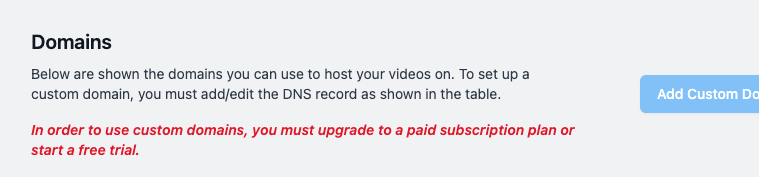
Please note that you must have a paid subscription plan in order to set up custom domains.
The Set Up
-
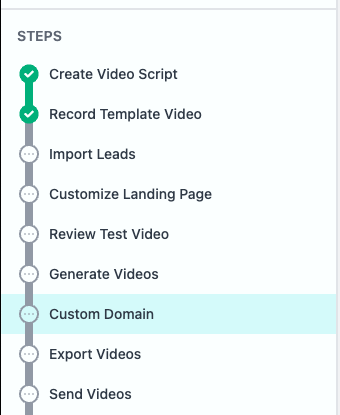
Open your campaign, and head on over to the custom domain tab
-
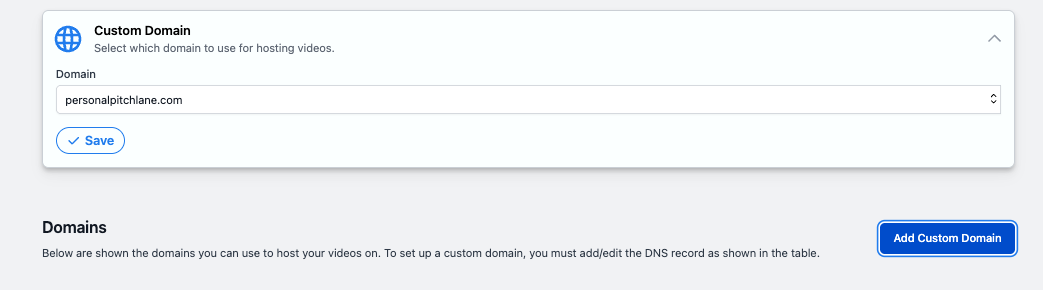
Press Add Custom Domain
-
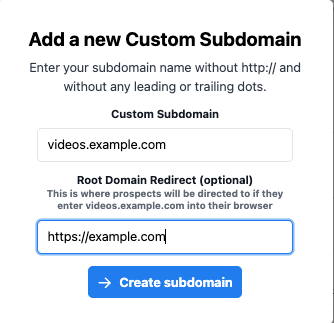
enter your ideal custom subdomain, and where the webpage should redirect to if someone types in your subdomain without it pertaining to a specific video. Press Create Subdomain
-
Paste the prompt into an LLM, or head directly to your domain registrar.
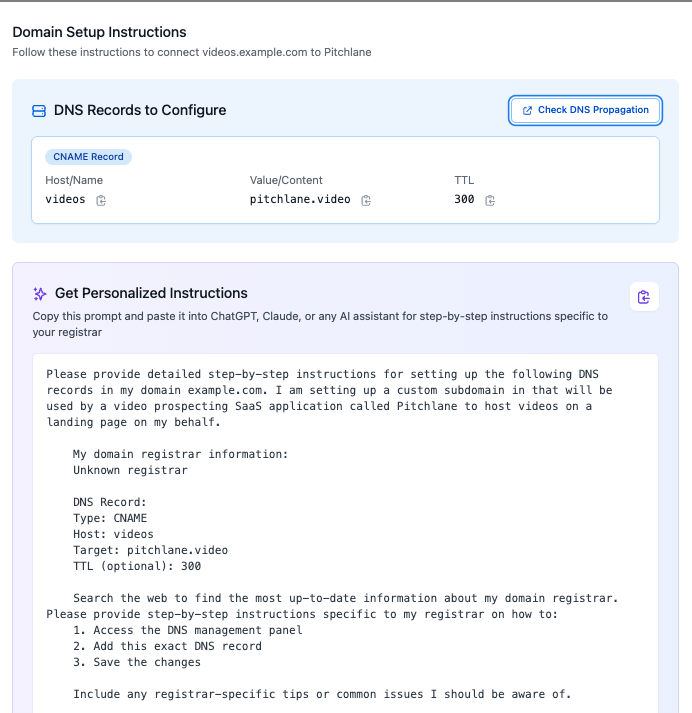
-
Locate your domain’s DNS settings in your domain registrar’s webportal.
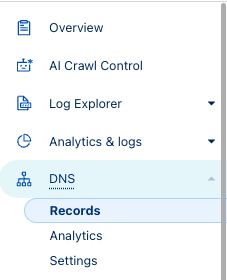
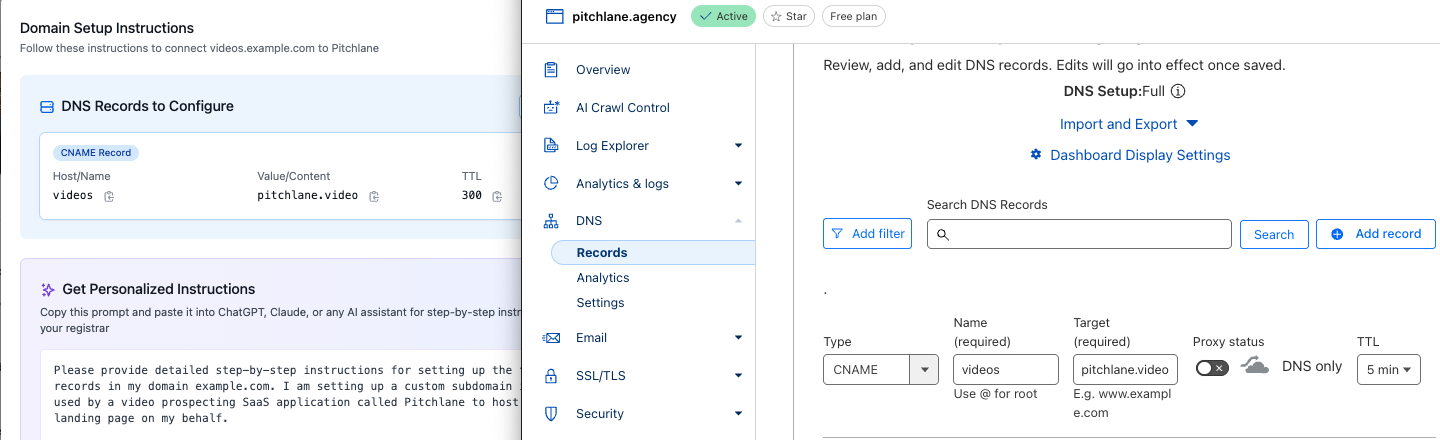
- Add a new record

- Select “CNAME” for type, and input the information from Pitchlane
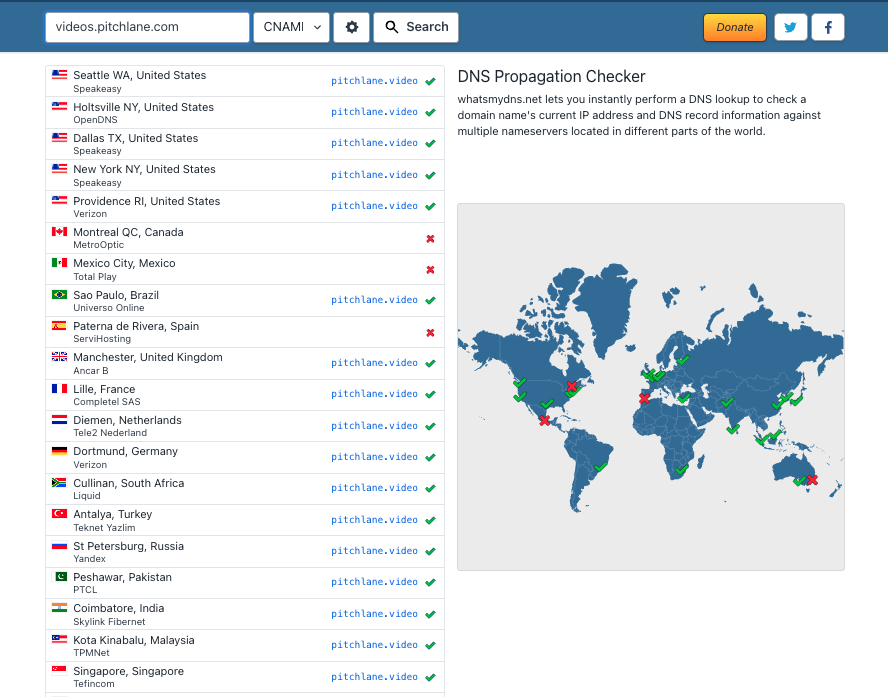
- Once saved and applied in your domain registrar, head back over to the Domain Setup Instructions on Pitchlane, and press the “check DNS Propagation button”
- The speed of propagation is **not **controlled by Pitchlane. Once your domain has propagated your subdomain will be fully ready to be used!
Still Having Issues?
Propagation can take up to 48 hours to show up.
However if you are unable to set up the custom domains, please send the following message to support.
Hey - I’m having issues with setting up my custom domains:
The domain(s) I want to set up are:
- domain
- domain
I tried to set up the domains myself and [insert problem] happened so I wasn’t able to set them up myself.