How to set up AutoFollowUp in Go High Level
Updated
What is AutoFollowUp?
To understand what AutoFollowUp is and how you can leverage it check out this guide: https://help.pitchlane.com/article/126-what-is-autofollowup
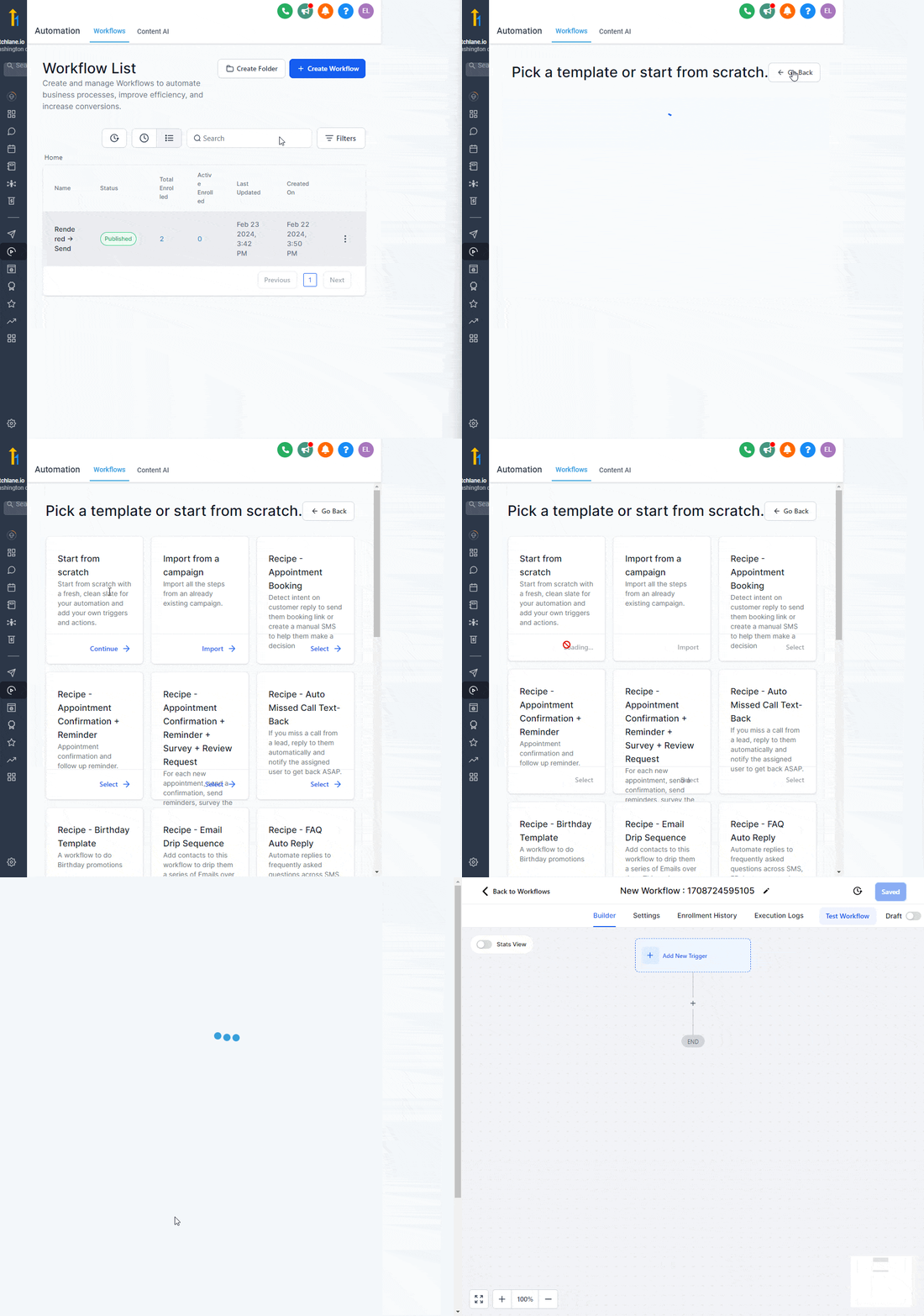
1.) Create a new Workflow from scratch
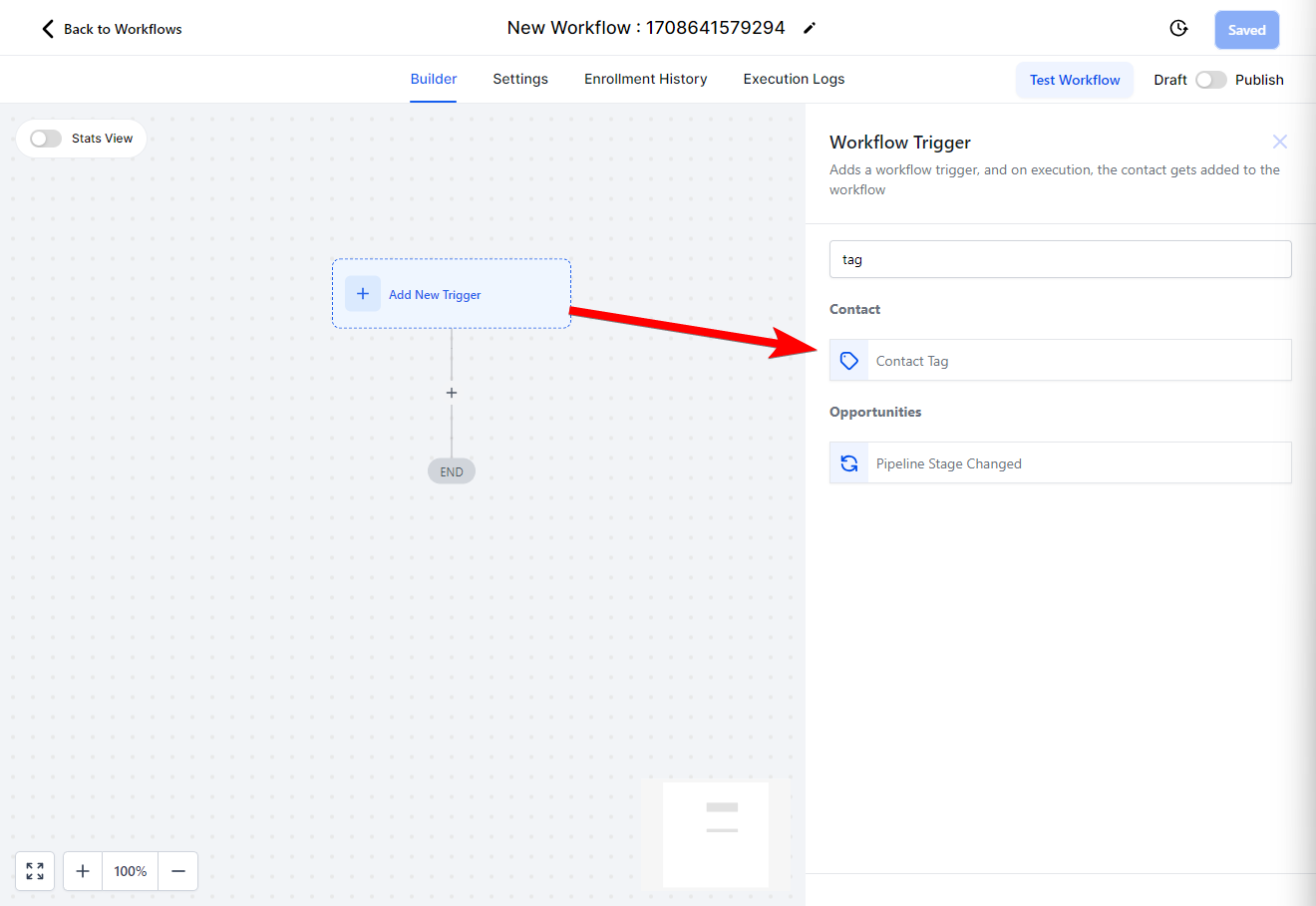
2.) Select “Add new Trigger” & Select “Contact Tag”
Select “Filters”, “Tag Added” then create a new tag called “[videoviewed]”
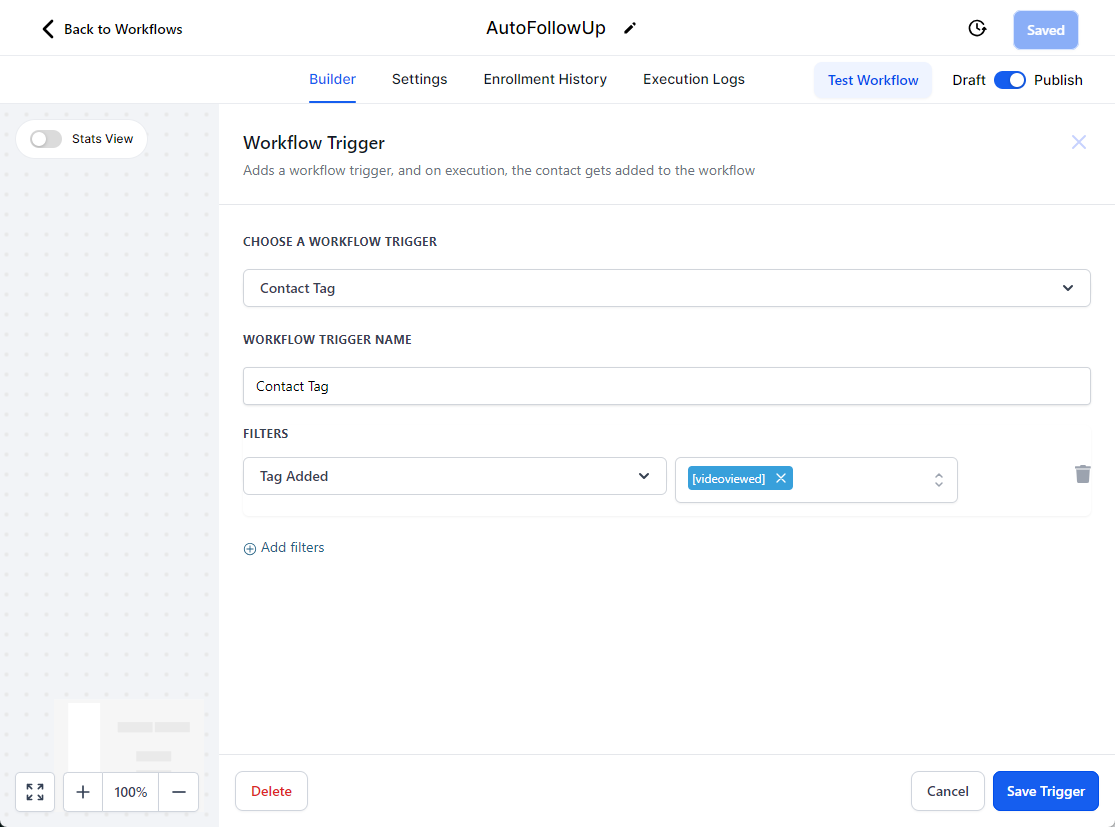
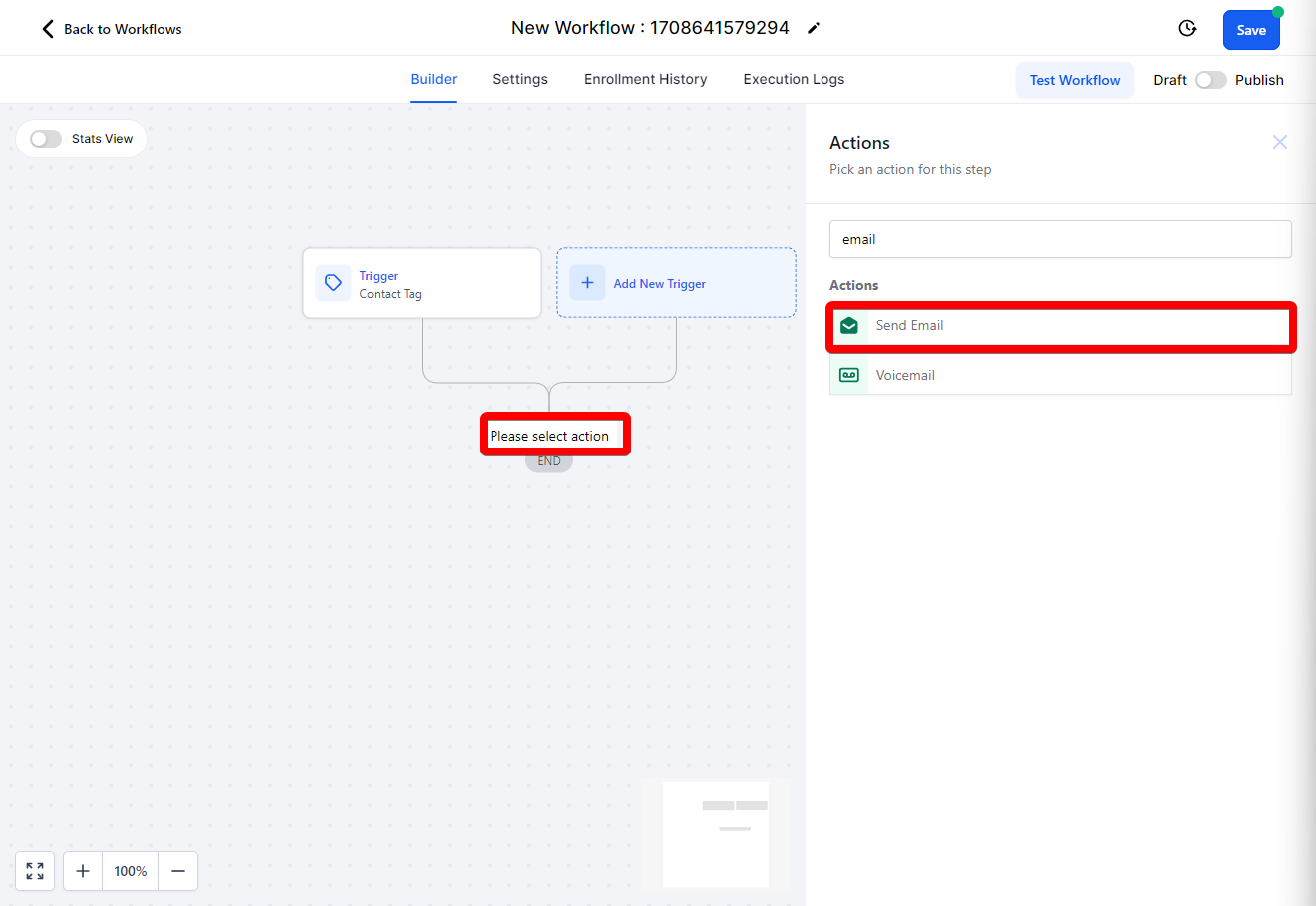
Click save & create a new Send Email action
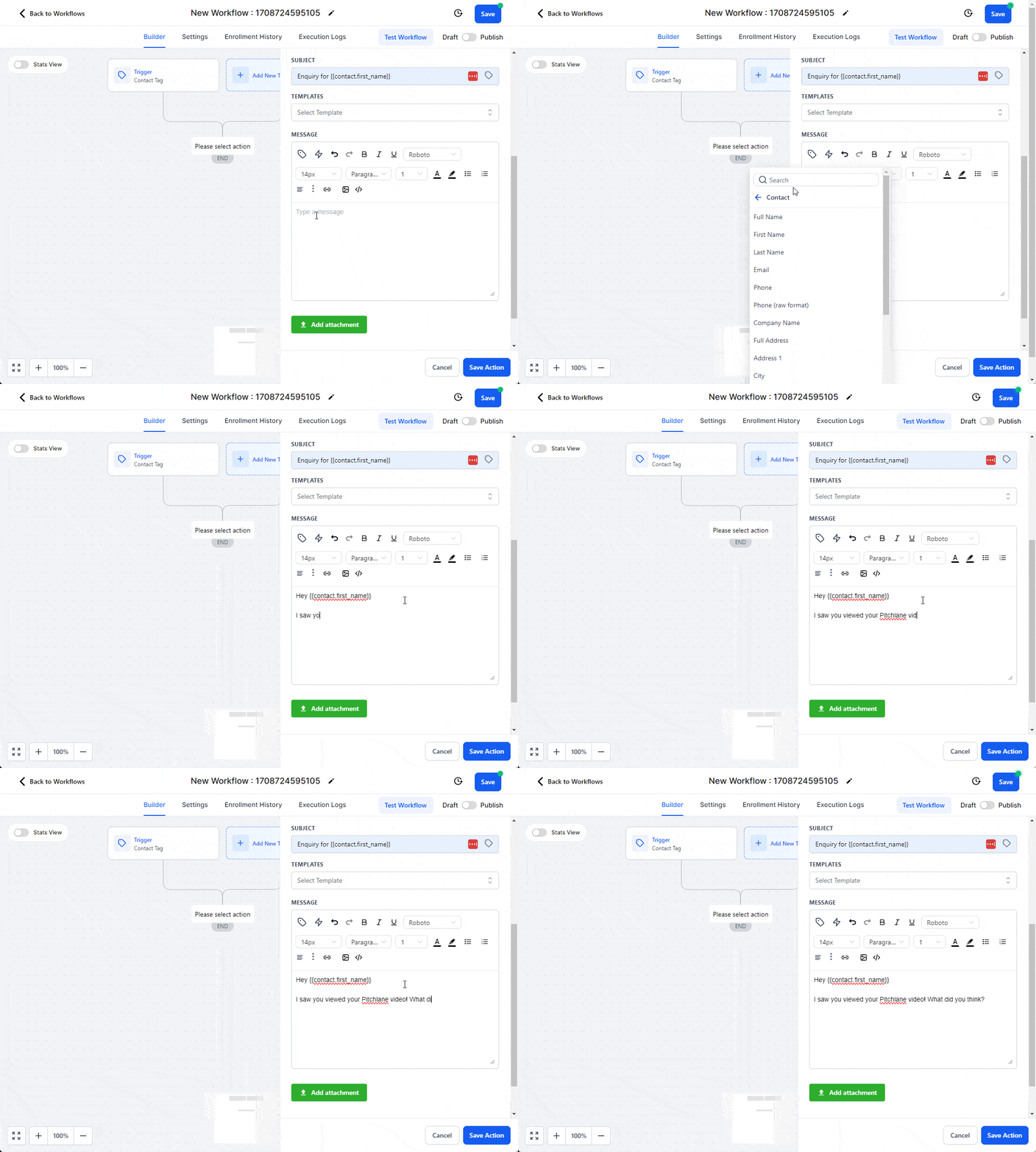
Craft your follow up message.
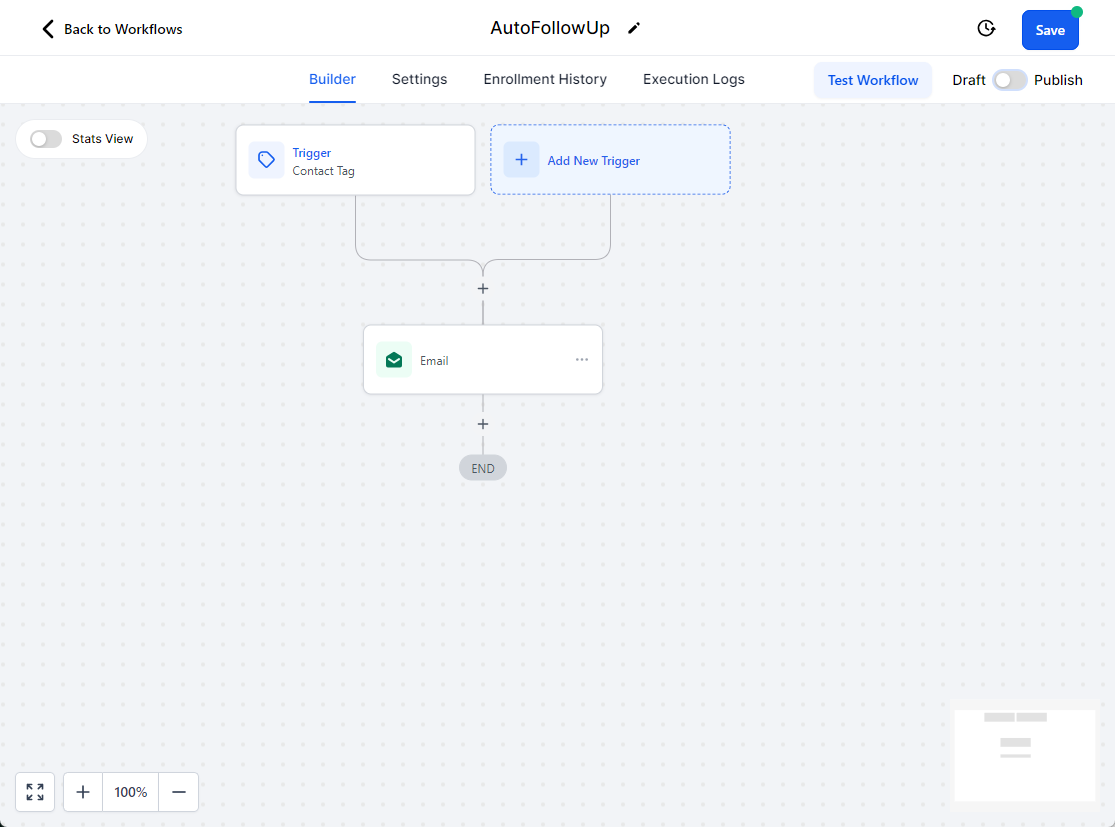
Rename your workflow to “AutoFollowUp”
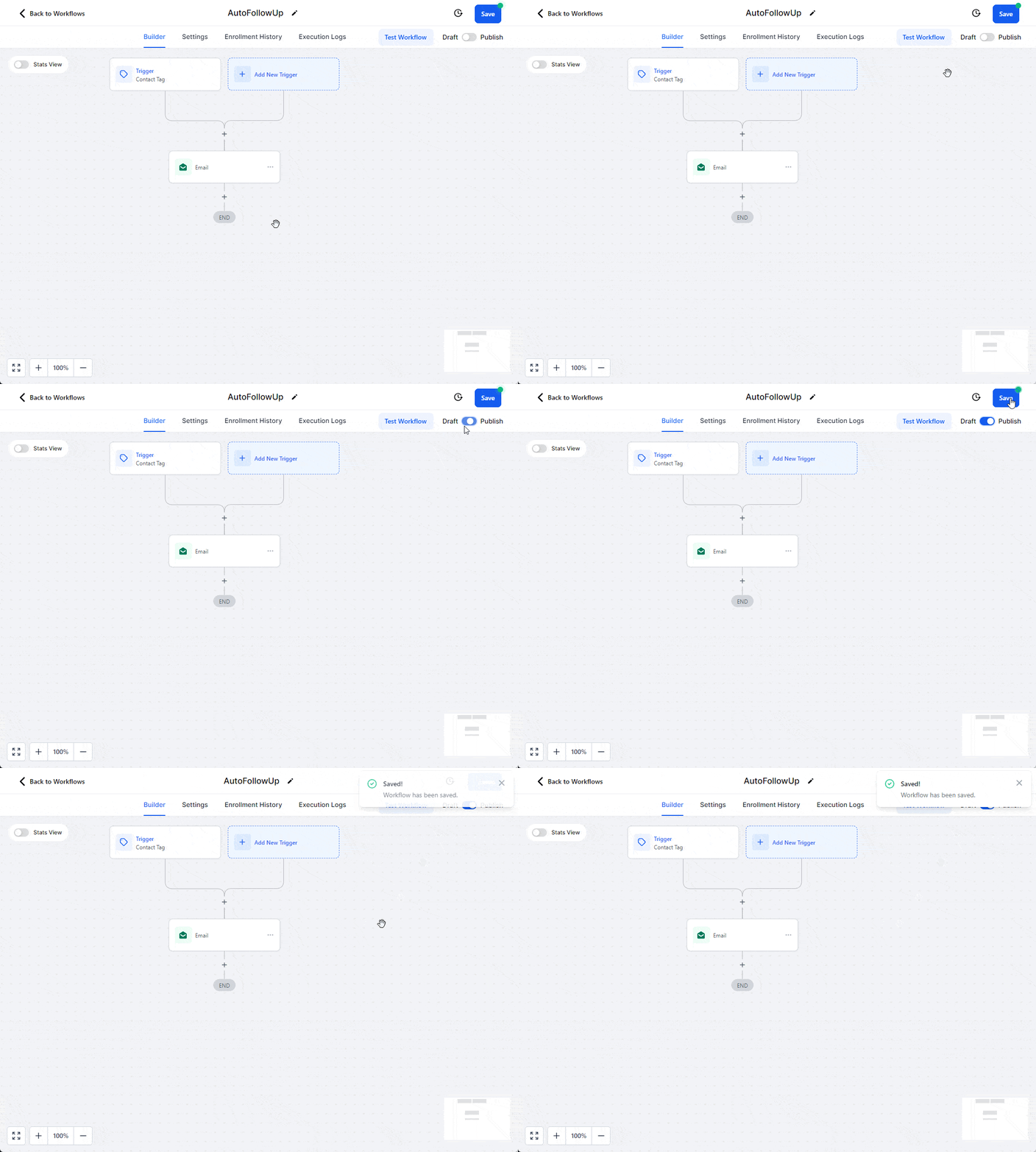
Select Save action and hit Publish!
Open our Zapier Template: https://zapier.com/app/editor/template/1676895
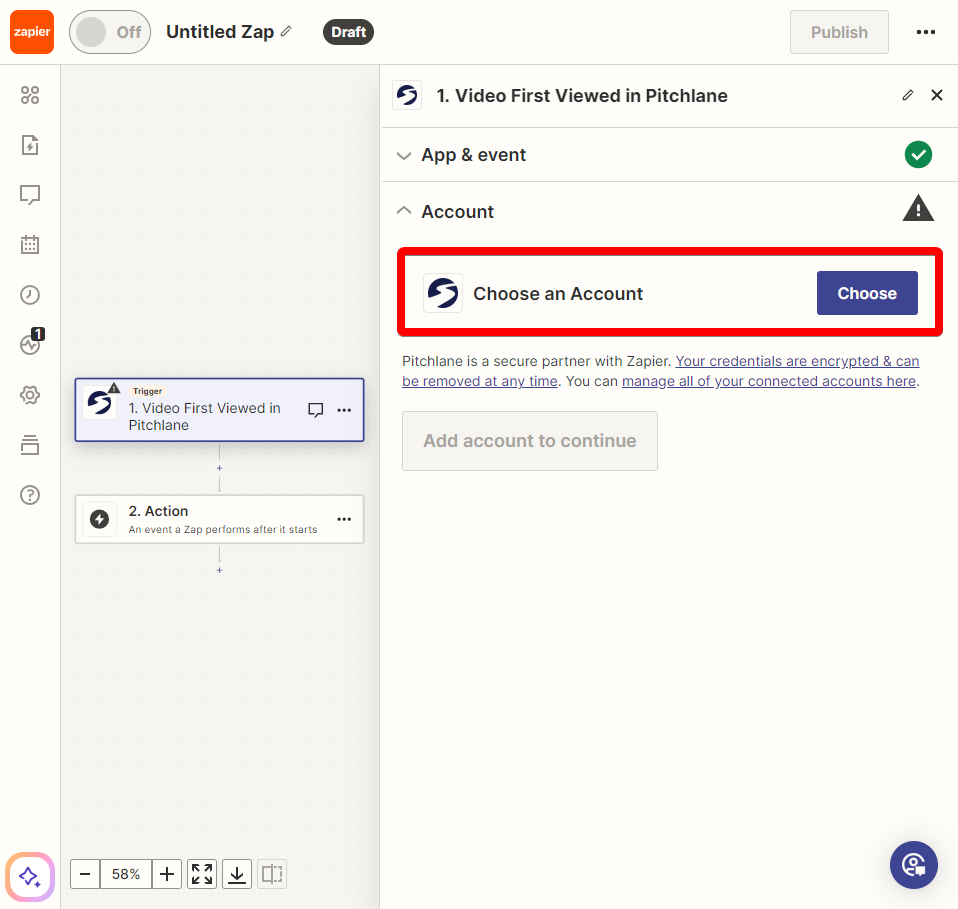
Ensure your Pitchlane Account is linked:
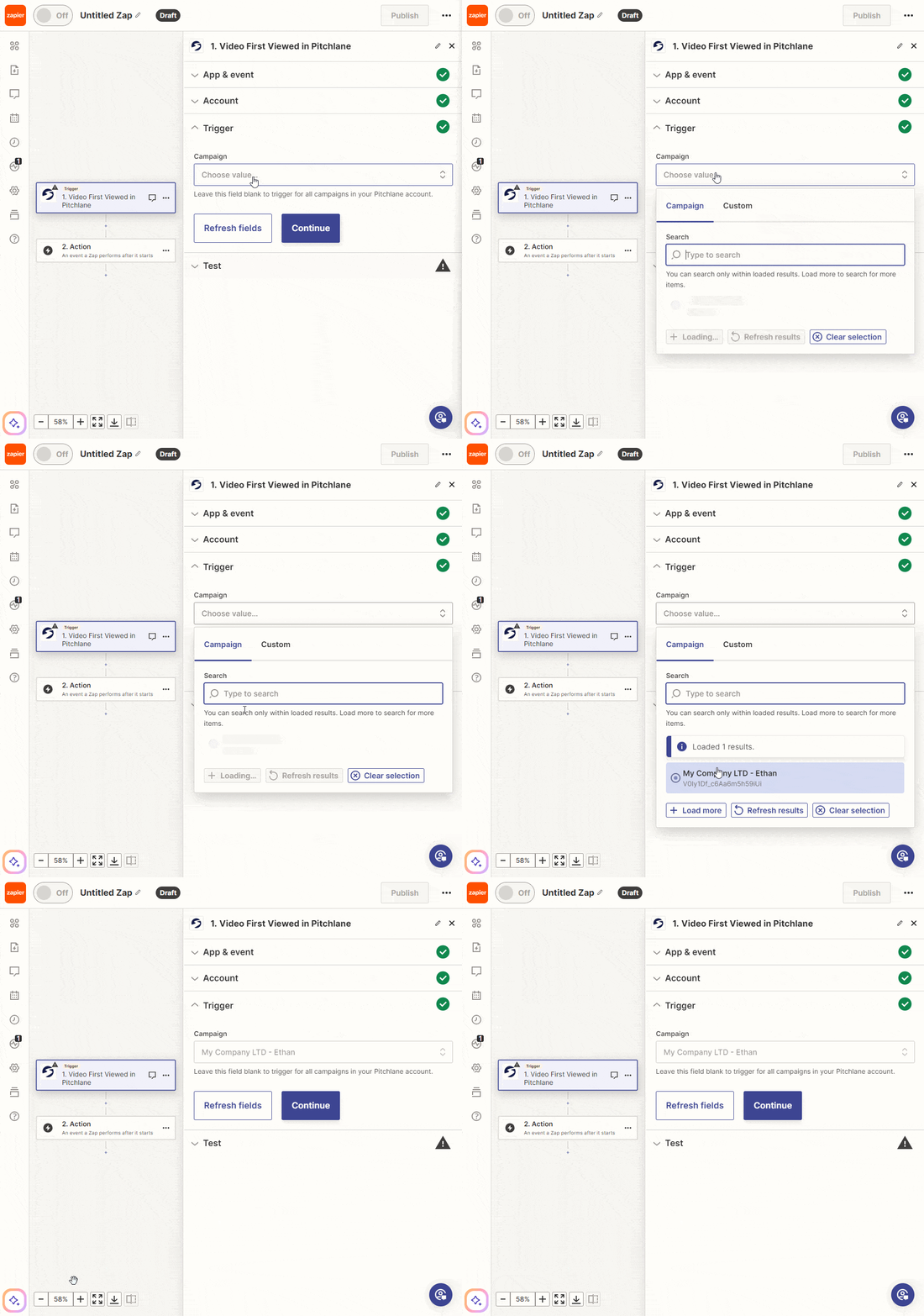
Select your Pitchlane Campaign
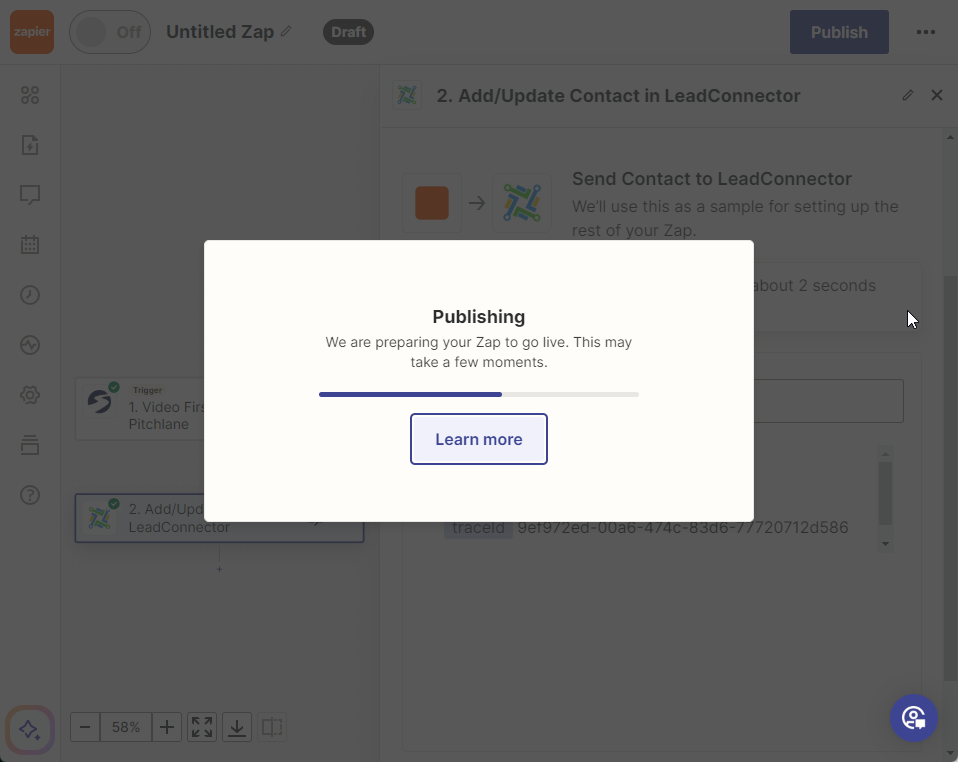
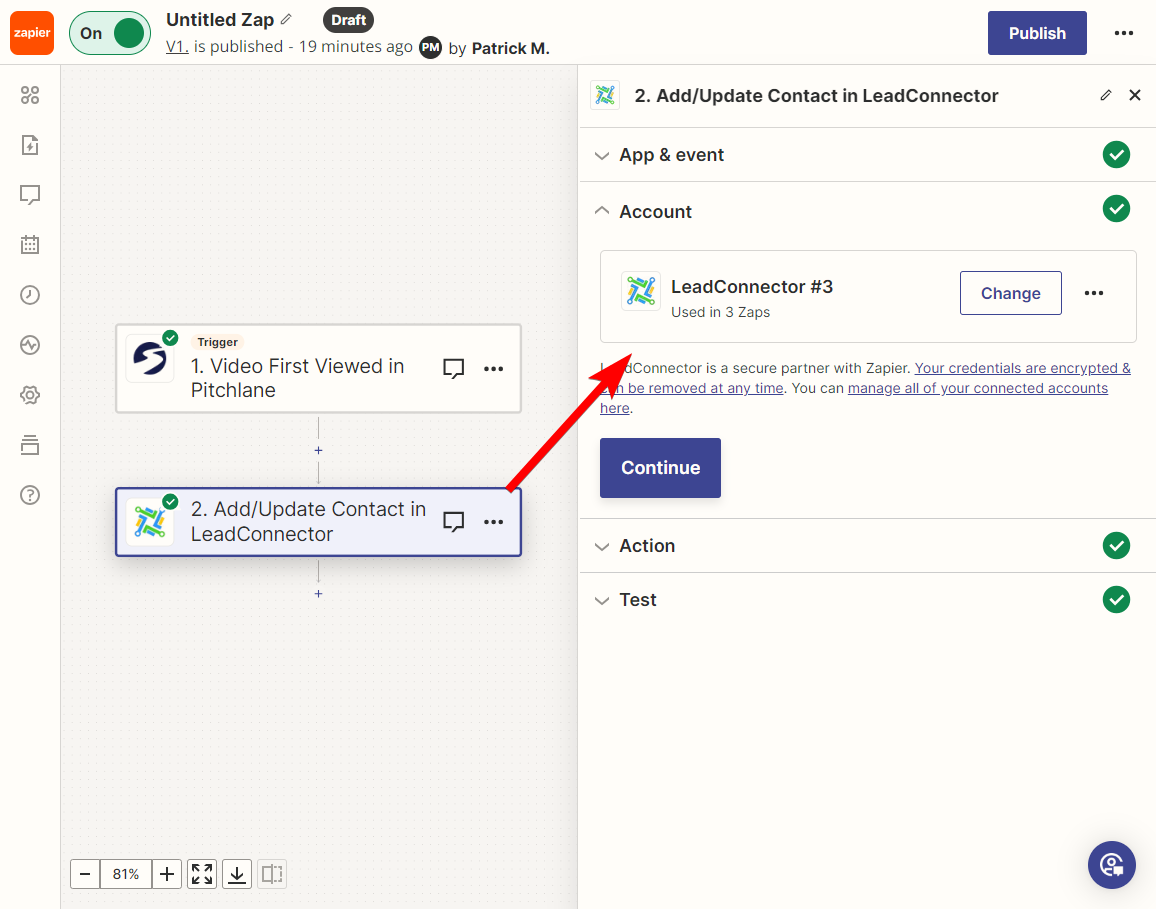
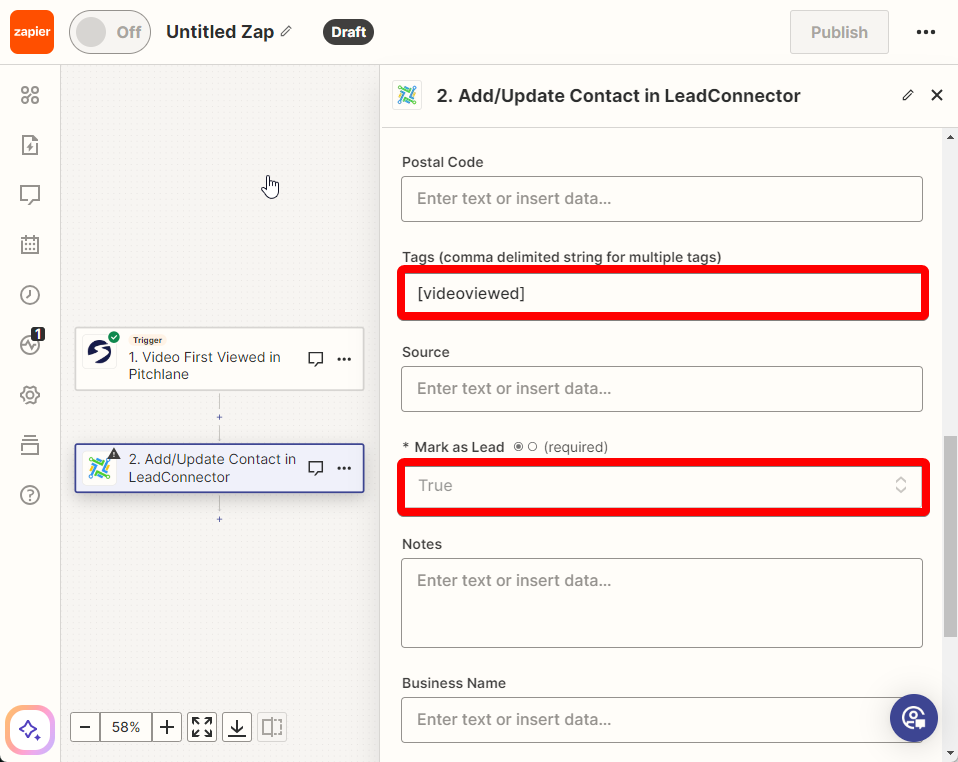
Select the action titled, “Add/Update Contact in LeadConnector” and ensure your subaccount is linked.
Populate the fields accordingly
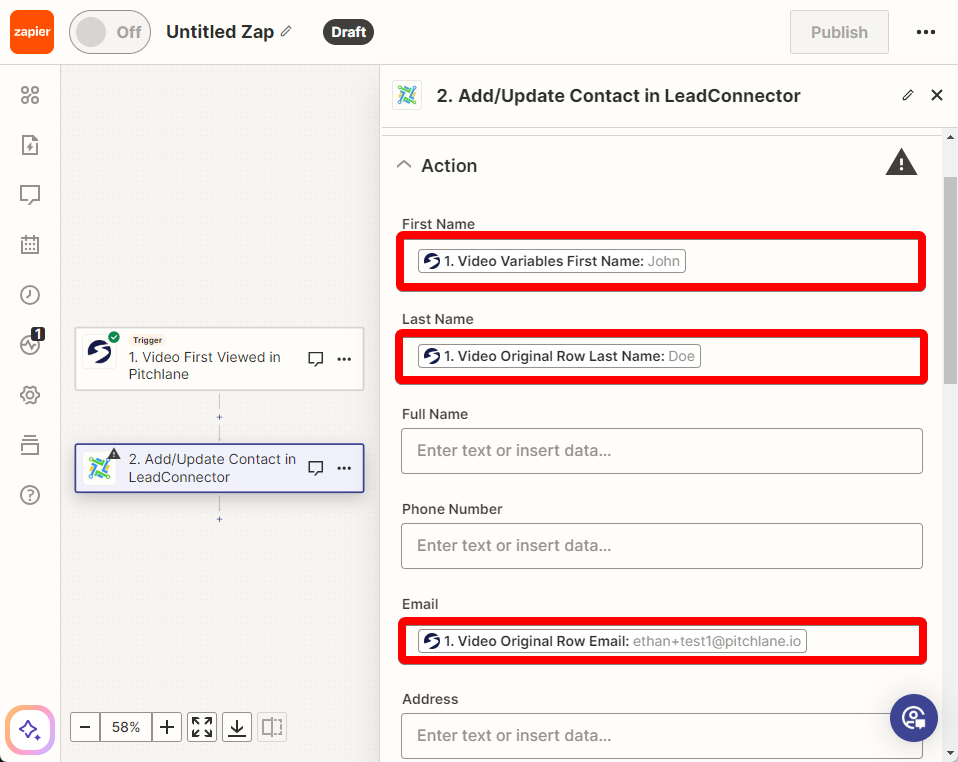
Ensure the field titled “tags” is populated with [videoviewed] & the mark as lead field is set to true.
Hit Publish!