
How to use Pitchlane with QuickMail
Updated
Incorporate your Pitchlane videos into your Quickmail campaign through following these steps:
-
Export Videos: Export your rendered videos from Pitchlane as CSV files.
-
Create Custom Attribute: Under Quickmail’s “Prospects” tab, navigate to “Attributes” and create a new custom attribute named “thumbnailEmbed”.
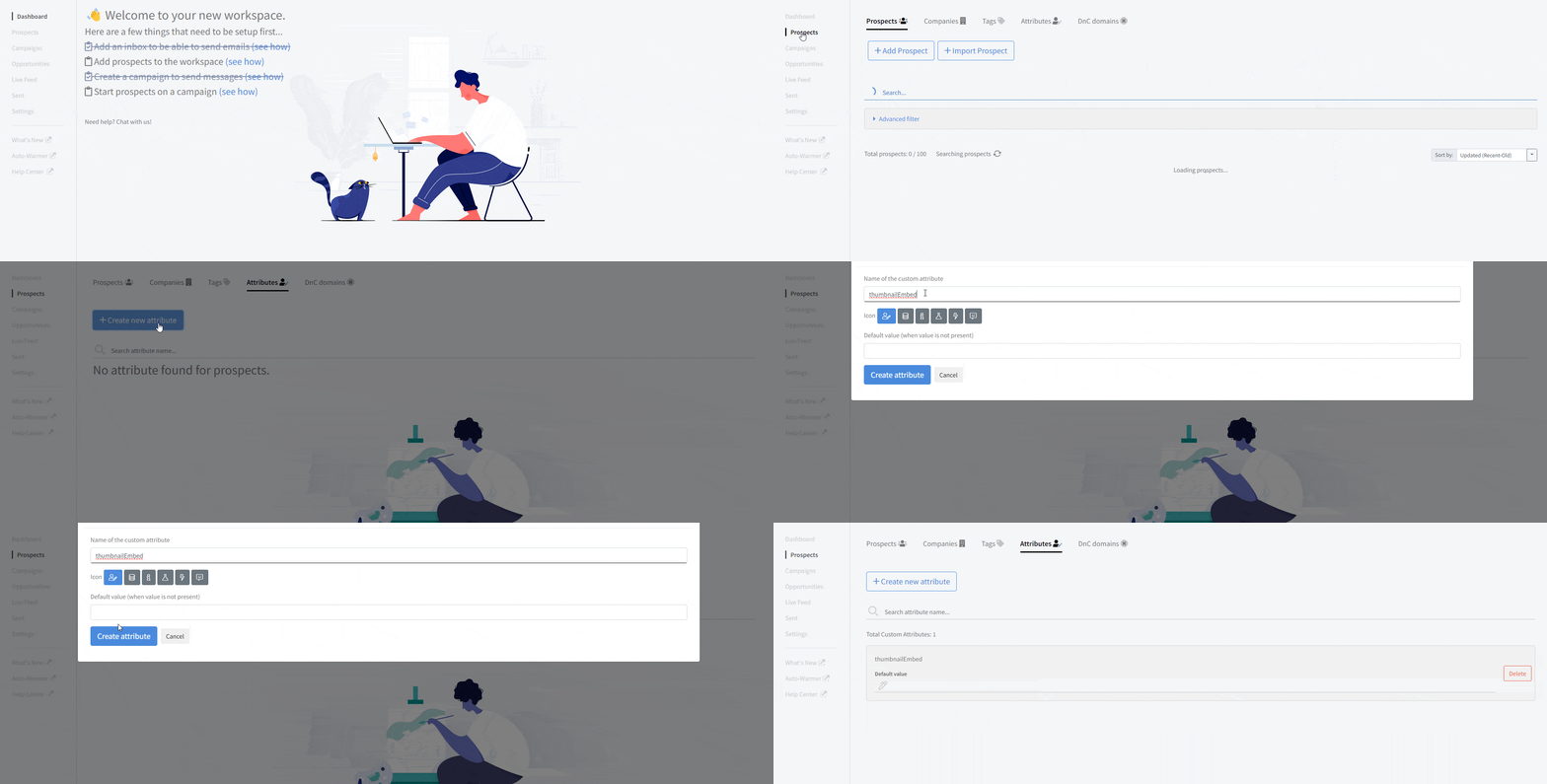
- Import CSV: Import the CSV into Quickmail by going to the “Prospects” tab, then selecting “Prospect” and “Import prospect.” Ensure variable alignment and include “thumbnailEmbed” under prospect attributes.

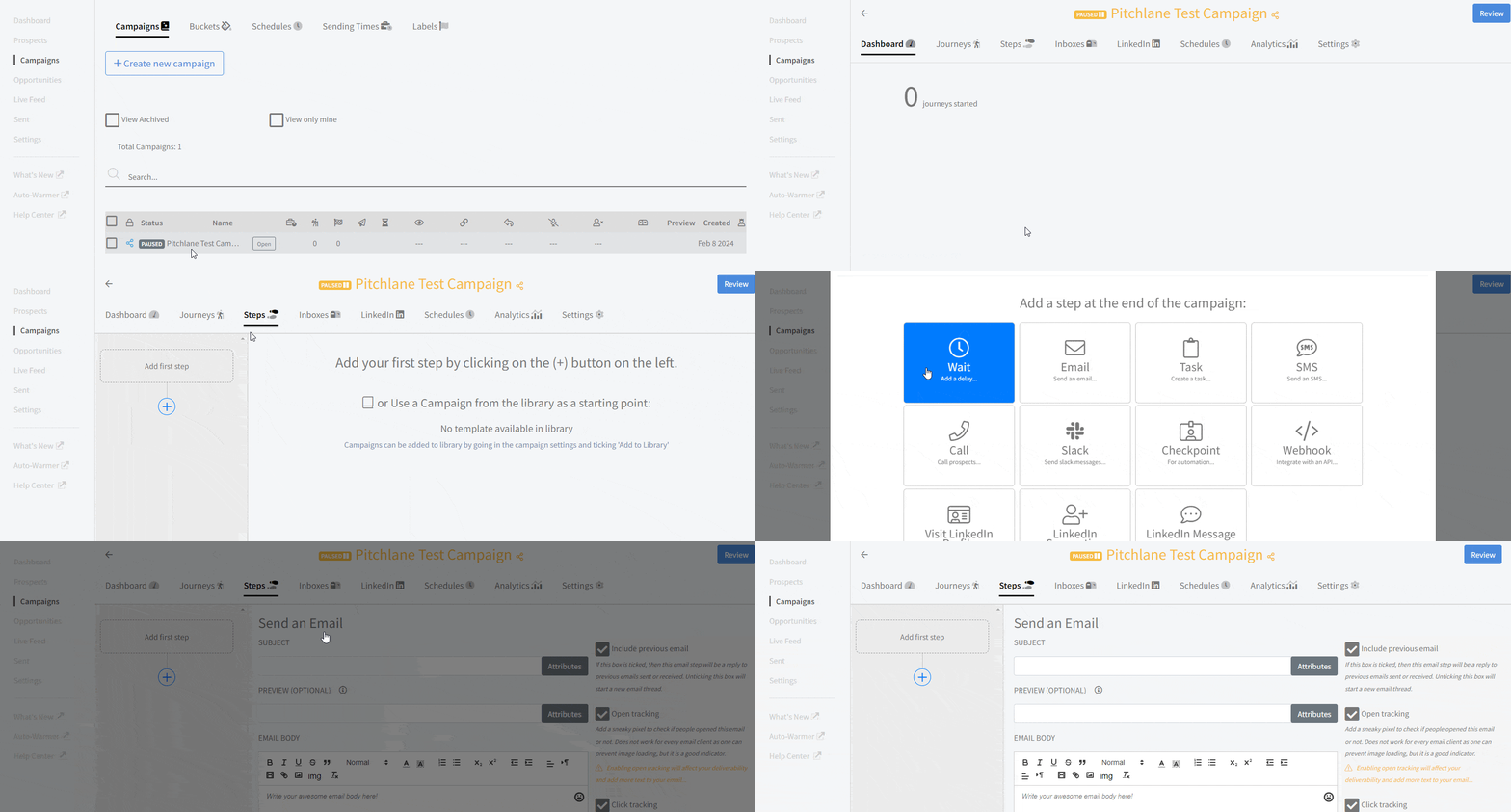
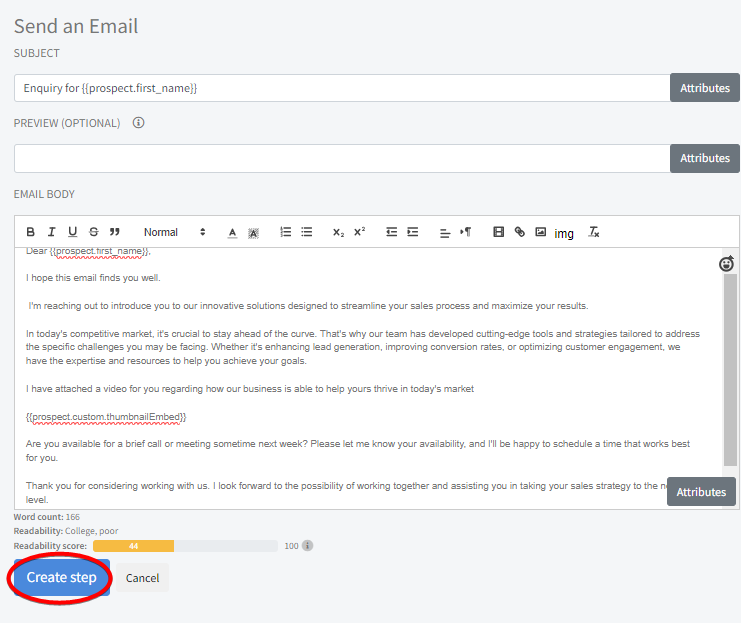
- Set Up Campaign: Go to “Campaigns” -> “Steps” -> “Add First Step” -> “Email.”
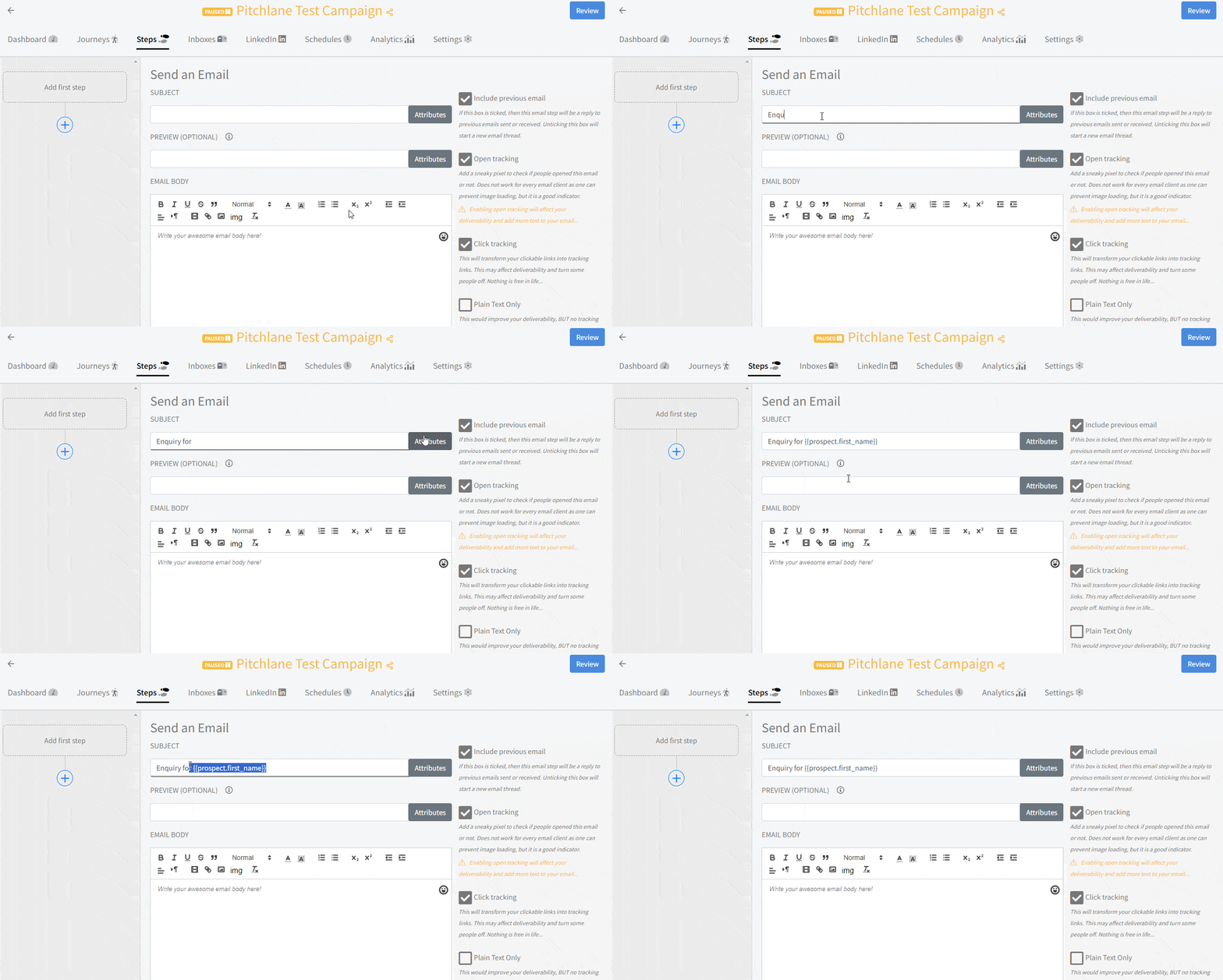
- Email Subject: In the subject textbox include your subject
Note: this can be personalized by selecting either first or last name by clicking on “attributes”.
- Write your Email: Craft your email and insert your Pitchlane video by selecting “attributes” then “thumbnailEmbed.”
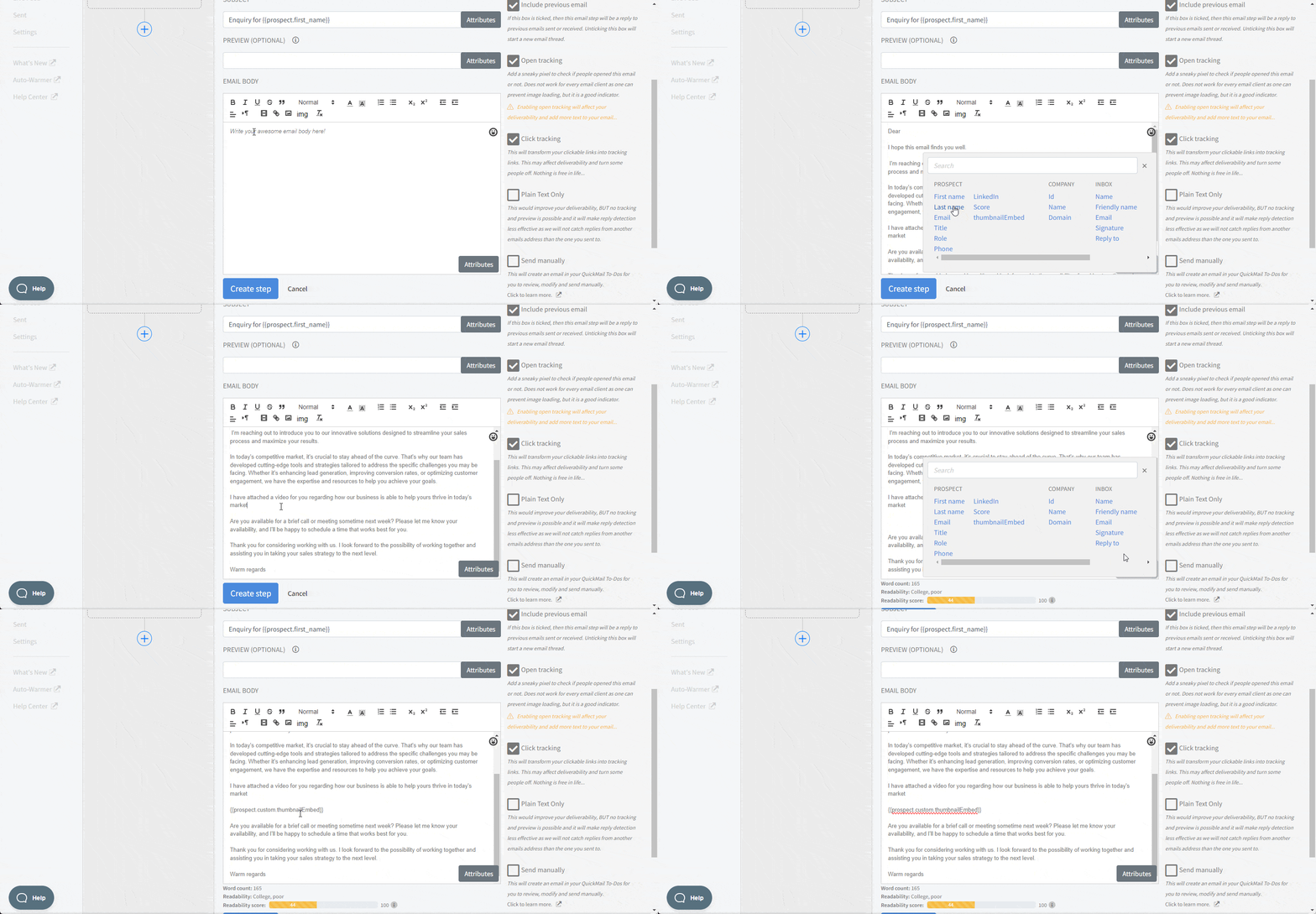
- Create Step: Once your email is ready, select “Create step”.
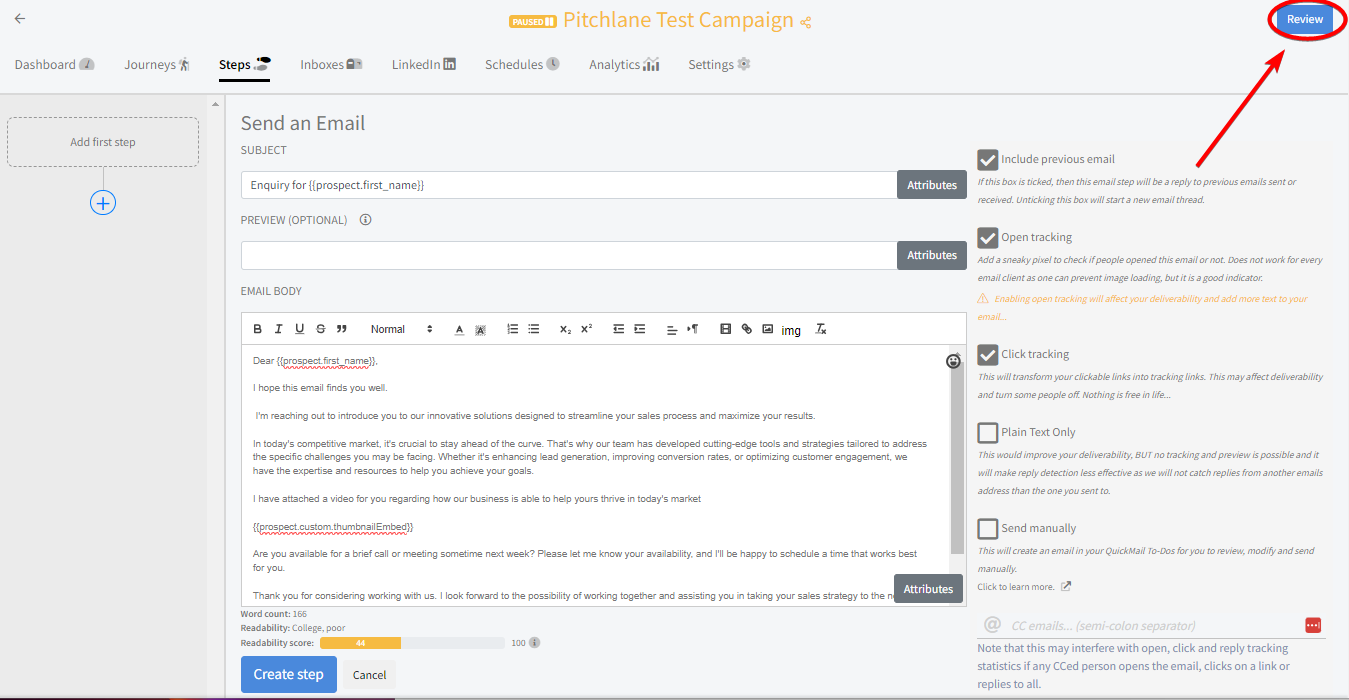
- Review Campaign: Select the “Review” button.
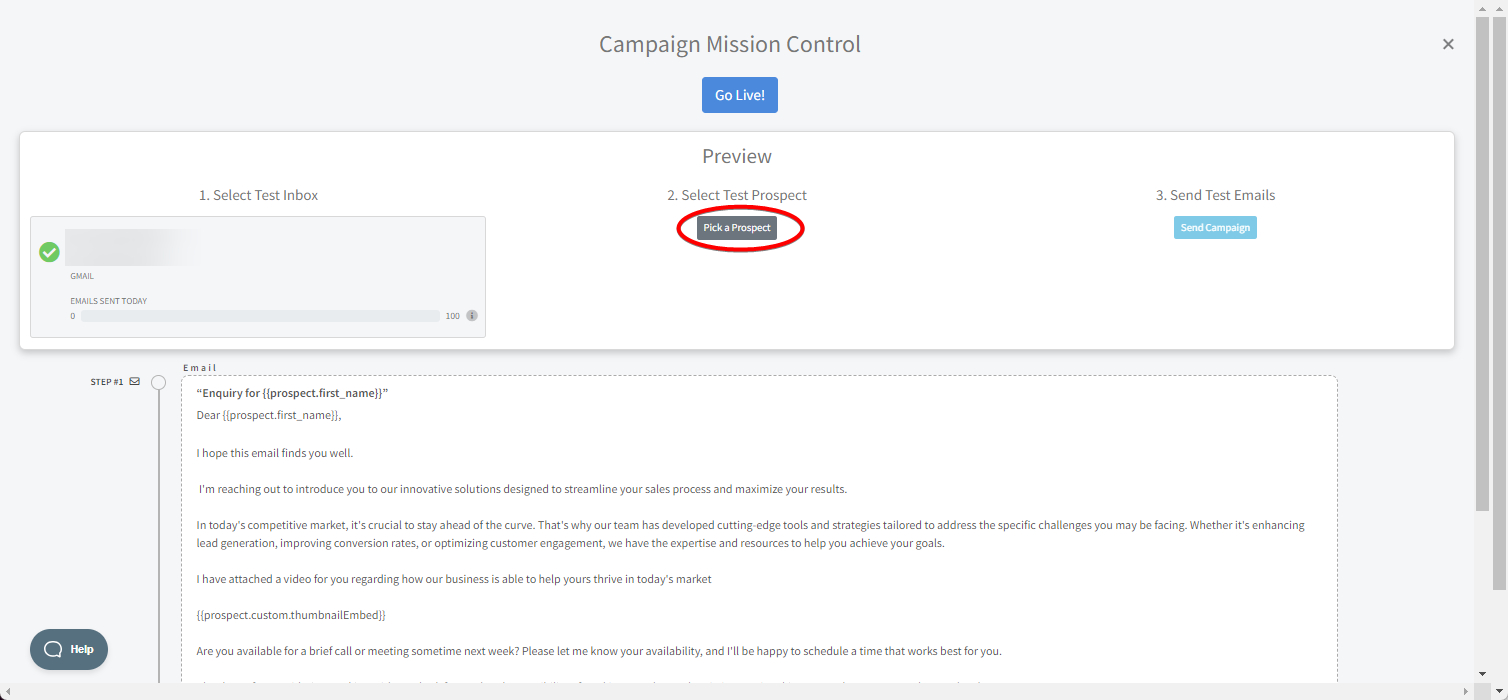
- Test Email: Test your email by selecting a prospect’s information.
Note: this will not send an email to your prospect. It just uses their information as a placeholder for the test
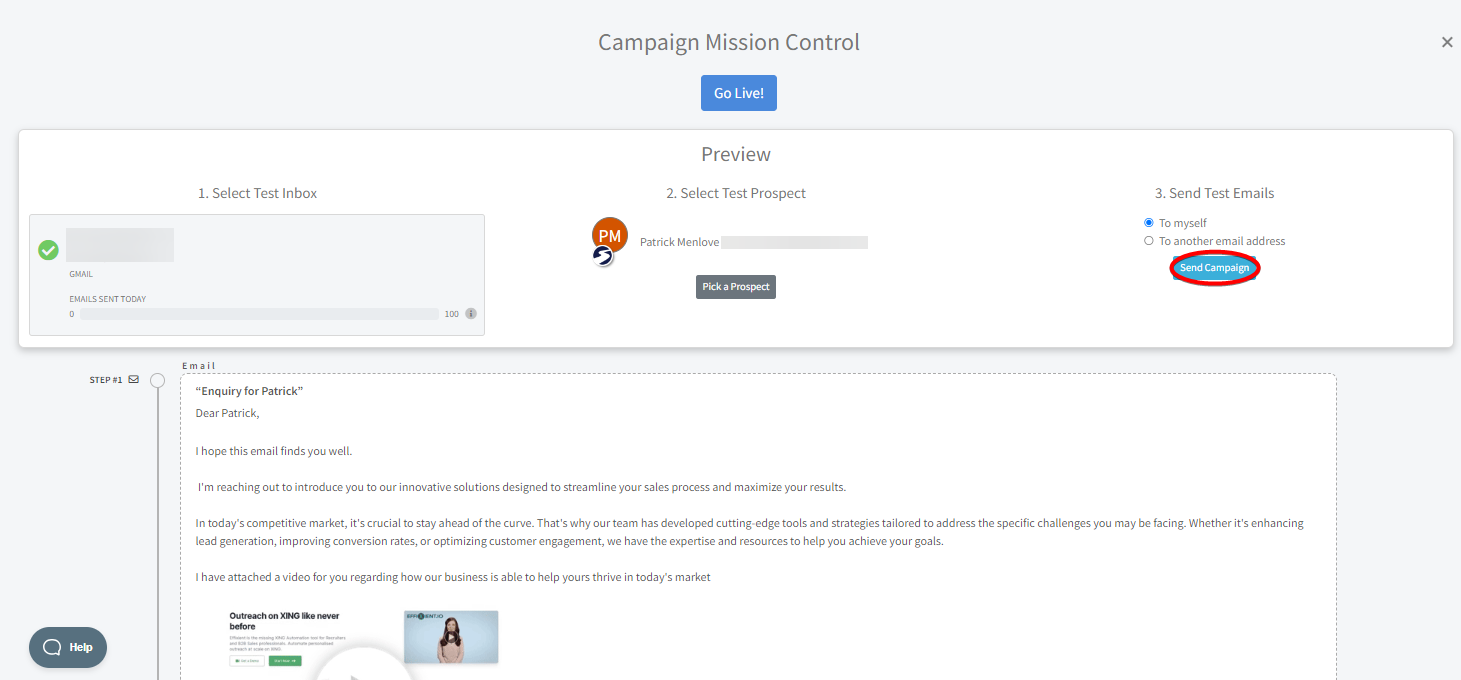
- Launch Campaign: When satisfied, launch your campaign by selecting *“Go Live” *by found through pressing the “*Review” button *.

Video going through the whole process: